
A YouTube video is easy to add to a website. A few well-chosen settings can make it much more useful: jump to a relevant part of a tutorial, enable captions or repeat a short demonstration. This guide explains the main player URL parameters, includes a responsive HTML example and shows how to balance usability, loading speed and privacy.
For a blog, online store or landing page, a video should support the content rather than interrupt it. The standard embed code is a starting point, but it will not automatically deliver the best settings for your audience.
You do not need the JavaScript Player API for most of the options below. They can be added directly to the URL inside an iframe. Examples use placeholders: replace VIDEO_ID and PLAYLIST_ID with the appropriate identifiers.
Quick answer: Which settings are usually sensible?
For an ordinary article, start with user-initiated playback, visible controls, available captions and a responsive player. For a specific tutorial passage, add a start time. Only use looping or autoplay where they serve a clear purpose.
For a privacy-conscious implementation, consider a locally hosted preview that loads the player only after an informed choice. The privacy-enhanced domain and lazy loading are useful tools, but neither is a complete consent mechanism.
How to embed a YouTube video
On YouTube, open the video on a computer and choose Share → Embed. Copy the iframe code into the HTML or embed block supported by your content management system. The uploader must allow embedding; age restrictions or other restrictions can also prevent playback on third-party sites.
A single-video embed URL has this structure:
https://www.youtube.com/embed/VIDEO_ID
Add the first parameter after ? and join further parameters with &. Do not use a normal watch?v= page address as the iframe source.
For example:
https://www.youtube.com/embed/VIDEO_ID?start=30&controls=1
In an HTML attribute, write the separator as &. The browser interprets it as an ampersand; it is not an additional YouTube parameter.
1. Start a video at a specific time
Use start to take readers straight to a relevant passage instead of making them search a long recording.
https://www.youtube.com/embed/VIDEO_ID?start=90
This requests playback from approximately 1 minute 30 seconds. The value is an integer number of seconds from the beginning of the original video, not a timestamp such as 1:30.
The player seeks to a nearby keyframe, so the actual start can be slightly earlier. Use a little context before an important explanation rather than placing the start at the very last moment.
2. Play a particular section with start and end
Combine start and end when a product demonstration or tutorial contains one section relevant to your article.
https://www.youtube.com/embed/VIDEO_ID?start=60&end=120
The requested section runs from approximately second 60 to second 120: about one minute. The end value is measured from the start of the original video, not from your chosen start point. To show one minute beginning at second 60, use end=120, not end=60.
This does not create a new video file or remove access to the rest of the original video. Check the actual behaviour with the content you want to embed.
3. Request autoplay without assuming it will work
autoplay=1 requests automatic playback when the embedded player loads:
https://www.youtube.com/embed/VIDEO_ID?autoplay=1
Browsers can block autoplay, particularly with sound. An iframe permission such as allow="autoplay" does not override the browser's policy or guarantee that playback will start.
YouTube also notes that autoplay can trigger playback-data collection when the player loads. If consent is required for your implementation, autoplay=1 does not replace it.
My recommendation for normal blog articles: leave autoplay off. Let people decide when to start. A visible preview and clear play button are usually easier to understand than a video that starts unexpectedly.
4. Loop a single video or a playlist
For a single video, loop=1 needs an additional playlist parameter containing the same video ID:
https://www.youtube.com/embed/VIDEO_ID?playlist=VIDEO_ID&loop=1
The ID therefore appears in both the path and the parameter. For a playlist, looping repeats the playlist after its final video rather than repeating only one item.
A loop can help with a short product demonstration. For longer explanations, it is usually better to let people choose whether to watch again. Keep controls available so viewers can pause a repeating video.
5. Show captions and select a preferred language
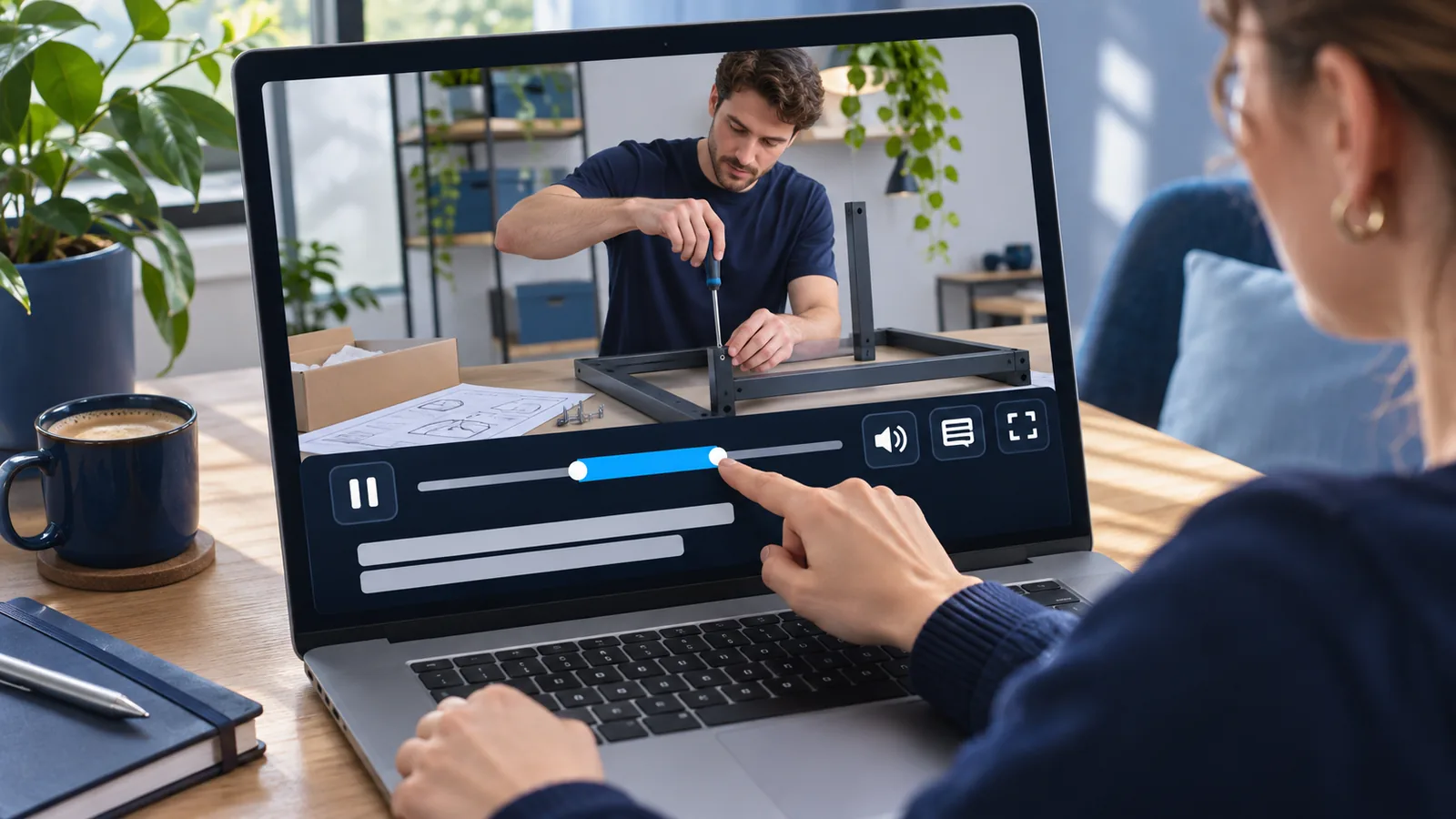
Captions help people who cannot hear the audio, prefer to watch silently or are following a video in another language.
Use cc_load_policy=1 to show available captions by default. Add cc_lang_pref to request a preferred language:
https://www.youtube.com/embed/VIDEO_ID?cc_load_policy=1&cc_lang_pref=en
Use de for German or en for English. The corresponding caption track must be available. These parameters do not produce a translation or create missing captions.
Review important captions rather than assuming that an automatically generated track is accurate. For an instructional video, a short written summary or transcript can also make the explanation easier to follow.
6. Keep player controls usable
The normal setting is controls=1. With controls=0, the usual player controls are hidden.
For most company websites, visible controls are the better choice. Visitors should be able to pause playback, adjust the volume, seek and choose available captions. Hiding controls is not a shortcut to an accessible custom player.
playsinline=1 requests inline playback on supported iOS browsers and appropriately configured WebViews. It is useful for keeping the video within the page, but platform behaviour and user settings still matter.
7. What rel=0 actually does
Older tutorials often claim that rel=0 removes related videos. That behaviour changed in 2018.
https://www.youtube.com/embed/VIDEO_ID?rel=0
The parameter now restricts related-video recommendations to the same channel. It does not disable them completely. This can be useful for a business channel with several relevant videos, but it does not give you full control over every element shown after playback.
8. Embed a whole YouTube playlist
For a sequence of tutorials, a product series or a video course, use a playlist embed:
https://www.youtube.com/embed/videoseries?list=PLAYLIST_ID
Replace the placeholder with the playlist ID, not an individual video ID. Check that the playlist and its videos are available to your intended audience. Add loop=1 only if repeating the entire sequence is actually helpful.
9. Privacy-enhanced mode and an informed loading choice
An iframe connects the visitor's browser to YouTube or Google when it loads. A standard embed therefore deserves more consideration than a locally stored image.
YouTube provides a privacy-enhanced domain:
https://www.youtube-nocookie.com/embed/VIDEO_ID
According to YouTube, viewing in this mode is not used to personalise the viewer's YouTube experience. The name does not mean that no information is transmitted, or that every implementation automatically meets applicable privacy requirements.
A locally hosted preview before the player
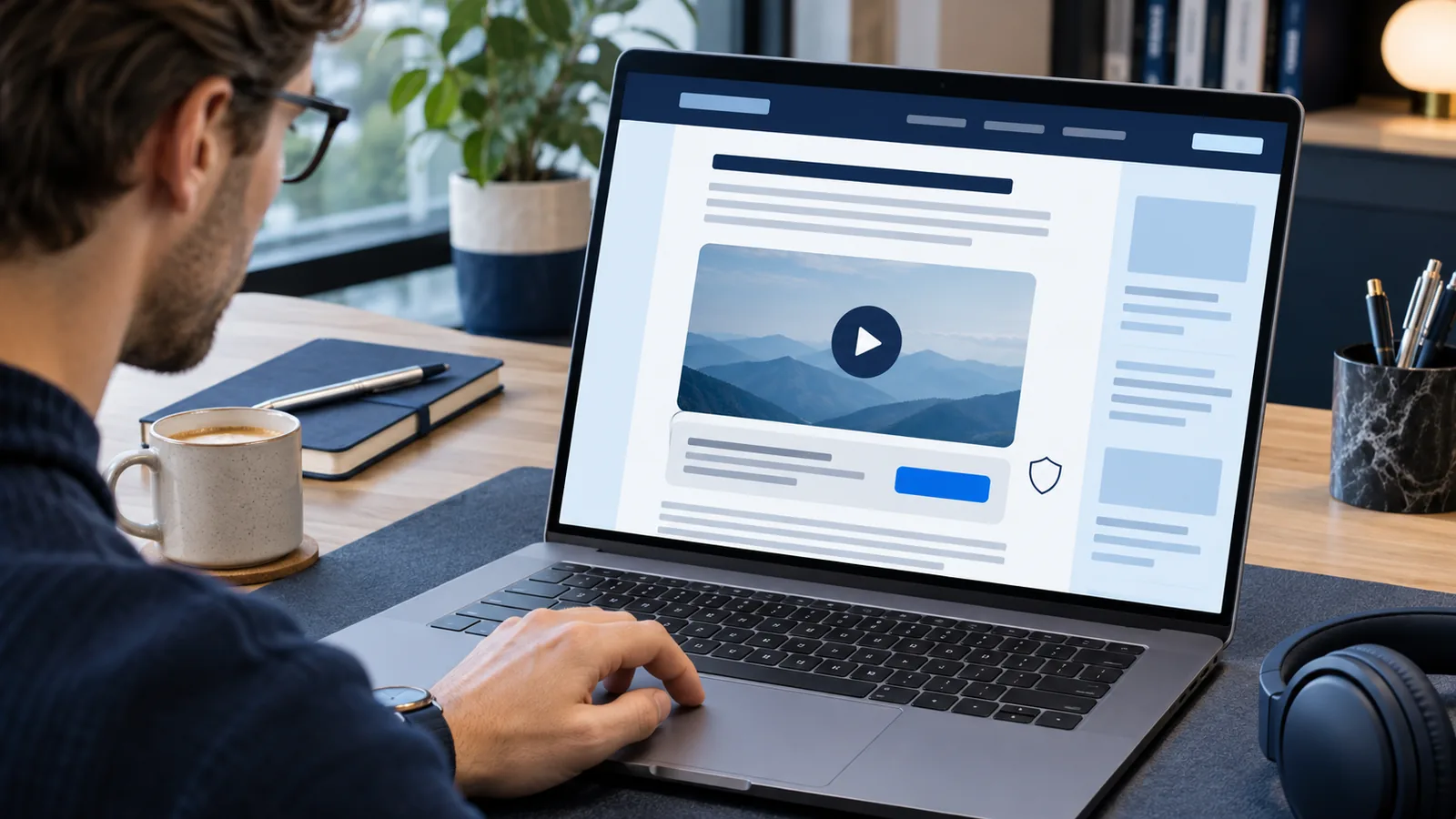
A commonly called “two-click” solution initially shows a local preview and an explanation. The iframe is not created until the visitor makes an informed choice to load the external content. Whether the same action also starts playback depends on the implementation.
Use an authorised preview image stored on your own server. If the initial preview is fetched from a YouTube image domain, a third-party connection can already occur before the player is loaded. Unnecessary preconnects and external scripts can undermine the same goal.
German/EU context: For websites subject to German rules, section 25 TDDDG can be relevant to storing or accessing information on a user's device, alongside the GDPR for personal-data processing. Requirements and exceptions depend on the actual implementation. Do not assume the same legal position applies in every country. This is general editorial information, not individual legal advice.
A play icon alone does not explain external data processing. Where consent is needed, provide understandable information, a genuine choice and an appropriate way to change that choice.
10. Useful parameters at a glance
| Parameter | Purpose | Important limit |
|---|---|---|
start=60 | Start at approximately second 60 | Seeks to a nearby keyframe |
end=120 | Stop at second 120 | Counted from the original video's beginning |
autoplay=1 | Request automatic playback | Browser rules may block it |
loop=1 | Repeat playback | Single videos also need playlist |
playlist=VIDEO_ID | Supply videos for a sequence or single-video loop | For a single-video loop, repeat the same ID |
controls=1 | Show normal controls | Usually the sensible default |
cc_load_policy=1 | Show available captions | Does not create a caption track |
cc_lang_pref=en | Prefer English captions | The language must be available |
rel=0 | Limit related videos to the same channel | Does not remove recommendations |
playsinline=1 | Request inline playback on supported iOS environments | Platform configuration still matters |
Outdated settings and optional JavaScript control
Do not rely on old examples using modestbranding, showinfo, autohide or theme. These no longer provide the appearance changes older tutorials promise. You also cannot assume that parameters will remove all YouTube branding.
If you really need JavaScript control, consult the IFrame Player API. When using enablejsapi=1, specify the appropriate origin as recommended by YouTube. Ordinary start times, captions and loops do not require that additional API setup.
Improve loading speed without confusing it with consent
An embedded player can load scripts and other resources. A page containing several players can be particularly expensive on mobile connections.
- Lazy loading:
loading="lazy"lets supporting browsers defer an iframe until it is near the viewport. It is a performance hint, not a consent barrier. - A reserved aspect ratio: A wrapper with
aspect-ratio: 16 / 9reserves space and helps avoid layout shifts. Give the player a usable size; YouTube specifies a minimum viewport of 200 × 200 pixels, so use a minimum height on narrow screens rather than shrinking it indefinitely. - A lightweight facade: A local preview can defer the full player until a deliberate action. Keep the preview small and appropriately compressed.
Test the result on a real phone as well as on desktop. Check that the player fits, controls remain usable and loading external content follows your chosen privacy setup.
Responsive example with a start time and captions
This example requests playback from second 30, prefers English captions and keeps controls visible. It uses the privacy-enhanced domain and reserves a responsive player area.
<style>
.video-embed {
width: 100%;
max-width: 960px;
aspect-ratio: 16 / 9;
min-height: 200px;
}
.video-embed iframe {
display: block;
width: 100%;
height: 100%;
border: 0;
}
</style>
<div class="video-embed">
<iframe
width="640"
height="360"
src="https://www.youtube-nocookie.com/embed/VIDEO_ID?start=30&cc_load_policy=1&cc_lang_pref=en&controls=1&playsinline=1"
title="A clear description of this video"
loading="lazy"
referrerpolicy="strict-origin-when-cross-origin"
allow="autoplay; encrypted-media; picture-in-picture; fullscreen"
allowfullscreen>
</iframe>
</div>Replace the video ID and title. In an actual project, put the CSS into the appropriate stylesheet. The 200-pixel minimum height can make the player taller than 16:9 on a narrow phone; this deliberately avoids squeezing the controls below YouTube's minimum height.
This is a code example, not a complete consent solution. It loads an iframe once browser loading conditions are met. For consent-gated content, create it only after the necessary choice, for example through a correctly configured consent-management integration.
Troubleshooting: YouTube error 153 and blocked playback
YouTube requires embedded players to identify their enclosing site through the HTTP Referer header or an equivalent supported client identifier. Missing identification can cause error 153. A restrictive policy such as no-referrer can be a cause; YouTube recommends strict-origin-when-cross-origin.
This policy normally sends the site's origin for a cross-origin HTTPS request, rather than its complete page path. It does not eliminate all data transfer. Inspect the overall policy and implementation instead of removing privacy controls indiscriminately. Opening an embed URL directly in the browser's address bar is not a reliable test of an embedded player.
If playback still fails, check the video ID, the uploader's embed setting, age or regional restrictions, your consent configuration and blocking browser extensions. Test from the website on which the player will actually run.
Conclusion: Useful videos need more than the right URL
For most websites, the best combination is simple: show the relevant passage, make captions available, keep playback under the visitor's control and reserve an appropriate responsive area.
Use autoplay and loops deliberately. Treat the privacy-enhanced domain, lazy loading and a consent-gated preview as different tools with different purposes. That makes an embedded video a helpful part of your content rather than an unexpected interruption.
Checked against the linked official documentation on 11 November 2026. YouTube can change player behaviour and supported settings.
Sources and image credits
Image credits
Image: AI-generated conceptual illustration using OpenAI / ChatGPT; title design: Business mit Kopf. Not an actual YouTube interface. Additional in-article illustrations: AI-generated using OpenAI / ChatGPT.
Content sources
- Google for Developers: YouTube embedded players and URL parameters
- YouTube Help: Embed videos and playlists, privacy-enhanced mode and error 153
- Google for Developers: IFrame Player API
- YouTube: Required minimum functionality and HTTP Referer
- Chrome for Developers: Autoplay policy
- web.dev: Lazy loading video
- Germany: Section 25 TDDDG, privacy on terminal equipment
0 comments
No comments have been published yet.